Connect a station
Add the station to the extension, or pair it with our server.
Through the station link
For a station on your own network, once the station link has it.
Step 1: Sign in and open Stations
Sign in at app.wiresheet.ai, in the same Chrome the extension is in, and open Stations in the header.
Step 2: Find the station under Through this browser
Every station in the extension is listed there, each with what it answered just now. These stations are reached from your computer; our server knows neither their address nor their password.
Through this browserextension 0.3.16
http://192.168.1.50
wiresheetadmin
Connected to Plant_JACE as wiresheetadmin.
These are reached from your machine. Their addresses and passwords are in the extension, not on our server.
Connect a station on that panel opens the extension, to add one without leaving the page. A station added there appears when you come back to the tab.
Step 3: Open its workspace
Click the station. Its workspace opens on the station's tree, and every call it makes goes out through your browser. Keep that tab open while you work: when it closes, so does the way to the station.
If the panel does not see the extension
The page says Connect a station on your own network when it finds no extension. Check it is installed and enabled, then choose I have installed it. After the extension is updated or reloaded, an open tab says The extension was reloaded; reloading the page reconnects it.
Pairing a station our server can reach
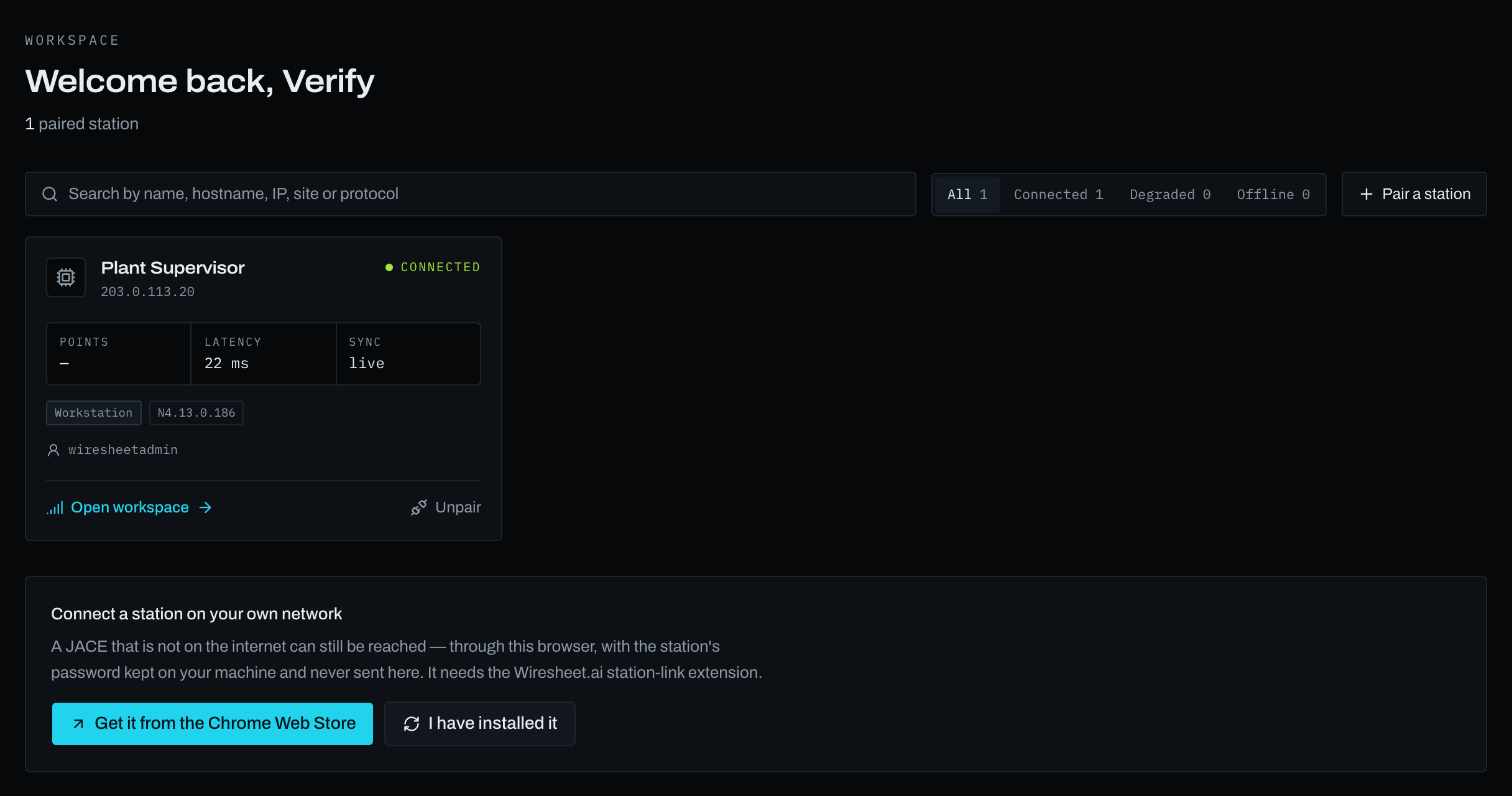
A station with an address our server can reach, over the internet or a VPN, can be paired instead. No extension is needed and it can be opened from any browser, but its account's password is then kept by Wiresheet.ai, encrypted.
Step 1: Pair a station
On Stations, choose Pair a station and fill in:
- Host: its address, such as
203.0.113.20, orhttps://203.0.113.20:4911for TLS on another port. - Username and Password: the station account.
- Name, if you want one other than the station's own.
- Accept a self-signed certificate, only for a station you know: the connection is encrypted but not verified.
Step 2: Test, then pair
Test asks the station without keeping anything, and says which station answered and as which user. Pair keeps it. The station then appears on Stations with the others.
Addresses our server will not open
A station is refused at an address no station has, such as the server's own or a cloud provider's internal ones. A station on a private address, such as 192.168.x.x, can only be paired if our server can route to it, which it usually cannot: use the station link for those.