Use the workspace
The tree, the views, Read-only and Commission, and saving.
The workspace is the station as Workbench shows it: the tree on the left, the view of whatever is open in the middle, and the agent on the right.
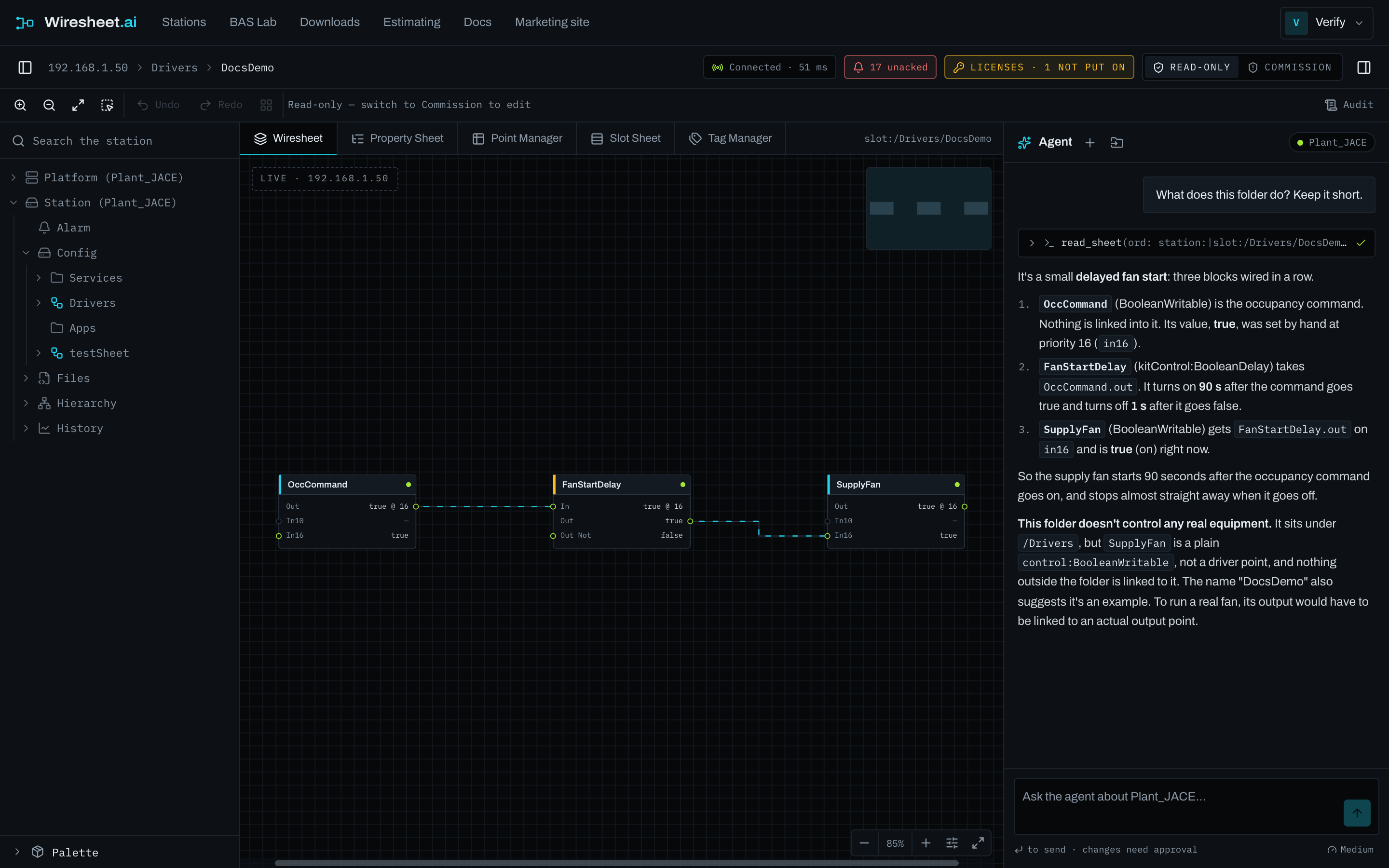
The tree and the views
- The tree is the station's own, with its Platform above it. Double-click a component to open it on its default view, as Workbench does: a driver network on its manager, a folder on its wire sheet.
- Right-click anything for what the station offers on it: its views, its actions, New, Rename, Delete, Edit Tags. The Views menu lists the station's own views; a view that exists only in Workbench is named there and not drawn.
- Wire sheets, property sheets, the Device and Point Managers, graphics, schedules, histories, alarms, users and roles all open here.
Read-only and Commission
Every workspace opens Read-only. To change anything, choose Commission at the top of the workspace.

Commission is a statement about the page, not a permission: the station still checks every change against the account Wiresheet.ai signs in as, and refuses what that account may not do. Switch back to Read-only when you are done looking at a live site.
Saving the station
A change made here is live on the station at once, but, as in Workbench, it is written to the station's configuration only when the station is saved. In Commission the header shows Save; after a change it reads Save · unsaved. A station that loses power before it is saved loses what was not saved.
Changes that cannot be taken back
Deleting, clearing alarm or history records, and anything the agent marks as changing what already runs ask you to type a word before they go. Read what the panel says will be removed: a device is everything under it.